
 Home
>
PDF Tips
>
How to Save a Webpage as a PDF - 5 Methods Tested 2026
Home
>
PDF Tips
>
How to Save a Webpage as a PDF - 5 Methods Tested 2026
How to Save a Webpage as a PDF - 5 Methods Tested 2026
- 1 Every major OS has a built-in way to save a webpage as a PDF through the print dialog. No install required for the basic case.
- 2 Chrome's "Save as PDF" destination is the fastest Windows path. Safari's Cmd+P plus the PDF dropdown is the cleanest Mac path.
- 3 On iPhone and iPad, you tap Share, then Print, then pinch outward with two fingers to expand the preview into a full-page PDF. The Markup tool lets you annotate before saving.
- 4 Android and Samsung Internet both follow Share, Print, Save as PDF, but they only capture the visible viewport. Long articles get cut off.
- 5 Online web-to-PDF converters like Web2PDF handle full-page capture without truncation, but they upload the URL to a remote server. Avoid them for confidential content.
- 6 If you regularly edit and share saved PDFs, PDNob PDF Editor handles the whole pipeline, including an in-app cloud-share feature that turns any PDF into a private web link.
To save a webpage as a PDF means to convert the content of an online page into a Portable Document Format file that preserves its text and images for offline viewing, printing, or sharing. Below are five ways I actually use, depending on the device in front of me. Each one covers Windows, macOS, iPhone, iPad, Android, or the web, with the exact clicks you'd make. At the end I'll show you how to clean up that saved PDF and turn it into a private share link using PDNob PDF Editor, which is in the Bonus section if you want to skip ahead.
One quick heads-up first. Long articles, lazy-loaded images, and comment threads all break the default print tools. I'll flag those pain points as we hit them, and I'll point at the fix when it matters.

Part 1: How to Save a Webpage as a PDF(Quick Overview)
Followig is quick reference for the five methods covered above:
 Please swipe to view
Part 2: How to Save Webpage as PDF on Windows
Windows makes this easy. Every modern browser on Win10 and Win11 ships with a Save as PDF destination inside the print dialog. Nothing to install.
How to save webpage as PDF in Chrome
If Chrome is your default (it is for most Windows users, last I checked), this is the fastest way to also cover how to print a webpage as a pdf and save it as one. Real steps.
Real steps:
-
Open the page in Chrome. Press Ctrl + P. Or click the three-dot menu and pick Print.
-
Under Destination, hit Change, then choose Save as PDF under Local destinations.
-
Click More settings. Pick Letter or A4. Decide whether to keep Graphics and Background graphics. Toggle Headers and footers off if you want a clean file.
Hit Save, name the file, done.

For everyday articles this works. It falls down on really long, image-heavy pages, but for the typical four to twenty minute read you get a usable PDF in under a minute.

If the page has infinite scroll, comment threads, or embedded videos, scroll to the very bottom first and let everything finish loading. Chrome only captures what was actually rendered when you hit print, and lazy-loaded sections vanish if you skip this.
For a fully reliable way to keep every section, every image, every comment intact, skip to the Bonus section.
Part 3: How to Save a Webpage as PDF on Mac
macOS has the smoothest native PDF export of any desktop. Safari's print dialog was designed for it. If you're wondering how to save webpage as pdf on mac, or you specifically need how to save a Website as PDF File on a Mac without third-party tools, this is for you.
Use Safari's Built-in PDF Export (Save, Print, Save as PDF)
Safari gives you four export options inside the print dialog. The first one, Save as PDF, is what you want 90% of the time.

Steps:
Open the page in Safari. File, Print, or press Cmd + P.
Look at the bottom-left corner. There's a PDF dropdown button.
-
Click it and choose Save as PDF. Skip Save PDF to Web Receipts and Mail PDF, they add metadata you don't want.
Pick a destination, name the file, click Save.
Why Safari beats Chrome here: Safari uses the system print stack, so fonts render identically. Chrome sometimes substitutes fonts or shifts layout, especially on sites with custom web fonts. For research papers, design articles, anything where typography matters, Safari is the safer call.
Safari still defaults to capturing only the visible viewport unless you actively select page ranges. If you want to know how to make a PDF of an entire webpage without losing the footer or sticky headers, Safari alone won't get you there. You'll need either a developer trick or a dedicated tool. Both in the Bonus.
Part 4: How to Save PDF from Webpage on Mobile
Mobile is where most people actually read. This is the longest section, because the answer differs a lot by device.
How to Save a Webpage as a PDF on iPhone & iPad
iOS and iPadOS handle how to save webpage as pdf in iphone cleanly, and the same flow works for how to save webpage as pdf ipad users, with Apple Pencil support for markup as a bonus.

Guide on How to Save a Webpage as a PDF on iPhone & iPad
-
Open the page in Safari and tap the Share button (the square with the up-arrow at the bottom on iPhone, top-right on iPad).
-
Scroll past the app icons to the second row, tap Print, and pinch outward with two fingers on the preview thumbnail to expand it into a full-page PDF.
Tap the Share button again at the top-right of the preview.
-
Choose Save to Files, Save to iCloud Drive, or send it directly via Mail, Messages, or any other app.
On iOS 16 and later, when you save a long webpage as PDF, Safari automatically generates a Table of Contents sidebar from the page's headings. Tap any entry to jump straight to that section. Big quality-of-life boost for long reads.
In Stage Manager or Split View you can keep the page open on one side and markup annotations in real time on the other. With Apple Pencil 2nd gen, hovering gives you a precise preview of where the stroke will land, which is great for marking up design articles or research PDFs.
How to Save a Webpage as a PDF on Android
You can save webpage as PDF Android in three taps. Android is more fragmented than iOS, different manufacturers tweak the share menu, but the basic flow is similar. Here's how to save webpage as pdf in mobile when your phone runs Android 11 or newer.
Chrome on Android:
-
Open the page in Chrome, tap the three-dot menu (top-right), and select Share.
From the share sheet, tap Print.
-
In the print preview, change the printer option at the top to Save as PDF.
-
Tap the PDF or Download icon and choose your save location (e.g., Downloads, Google Drive).
Samsung Internet, for Samsung Galaxy users, is friendlier than Chrome here. You can pin the option to your share menu:
Open Samsung Internet, tap the three-line menu, Settings.
Customize menu, then enable Save as PDF.
-
Now any page, Share menu shows Save page as PDF directly. No detour through Print.
Firefox for Android, Brave, and Microsoft Edge all follow the same Share, Print, Save as PDF pattern, menu labels vary slightly.
Like Chrome on desktop, Android's print-to-PDF only captures the current viewport. Want to keep the comments section, the related-articles footer, or anything not currently rendered? You'll lose them. For long-form articles on Android, the next sub-section, an online tool, is genuinely the better path.
How to save webpage as PDF online
For Android users (and anyone who wants no install), online web-to-PDF converters are often the most reliable way to get a clean PDF without truncation. I'll walk you through Web2PDF as a representative, but the same flow works for Sejda, iLovePDF, SavePageAsPDF, and most others.
Steps using Web2PDF
-
Open your mobile browser, search for a secure web-to-PDF site (HTTPS with a clear privacy policy), and copy the URL of the page you want to save.
-
Paste the URL into the converter's input field and select your capture mode: Single Page for a continuous scroll or Multiple Pages for standard A4/Letter printing.
-
Apply optional advanced settings if available (e.g., strip ads, hide cookie banners, skip navigation), then hit Convert and wait for processing.
-
Hit Download to save the file to your local storage or cloud drive.

Why this beats Android's native print tool. Online converters render the entire page on a remote server using a headless browser, so they actually capture lazy-loaded content, hidden comments, and footer sections that mobile Chrome silently drops. For an Android user saving a 5,000-word investigative piece, this is the difference between a usable PDF and a frustrating truncated mess, and it's the cleanest fix for how to save a webpage as PDF without cutting off when the native tools keep chopping the last few paragraphs.
online converters fetch the URL you submit, so they see the page content. Avoid them for anything confidential. Internal reports, draft financials, anything under NDA. For one-off public articles, fine. For repeated professional use, the desktop workflow in the Bonus section is safer and faster.
Part 5.Bonus: How to Edit Saved PDFs and Share as a Webpage
Saving the PDF is half the job. If you want to clean it up, strip ads, fix typos, add notes, highlight key passages, and then share with teammates as a web link rather than a bulky email attachment, you need a dedicated PDF tool. This is where PDNob PDF Editor comes in.
PDNob PDF Editor is a lightweight AI-powered PDF editor for Windows and macOS that handles the post-save workflow in one app. It's built for users who save and share documents daily. Its can help OCR your saved PDF at 99% accuracy. If you save multiple webpages a week, or regularly share PDF links with clients, PDNob replaces three separate tools in one.





Edit Your Saved Webpage PDF in PDNob
-
Open PDNob, go to File > Open, and select the PDF you just saved.
-
Click Edit in the top toolbar to enter Edit Mode, then edit text directly or right-click images to replace, resize, extract, or crop them.
-
Add annotations (Highlight, Sticky Note, Stamp, Signature, Text Box) from the Annotate panel, and manage pages (Insert, Delete, Rotate, Reorder, Merge) from the left thumbnail panel.
-
Save with Ctrl + S to overwrite the original, or use File > Save As to export as PDF/A for archival or high-compression for email. You can right click the cloud button on the dashboard to
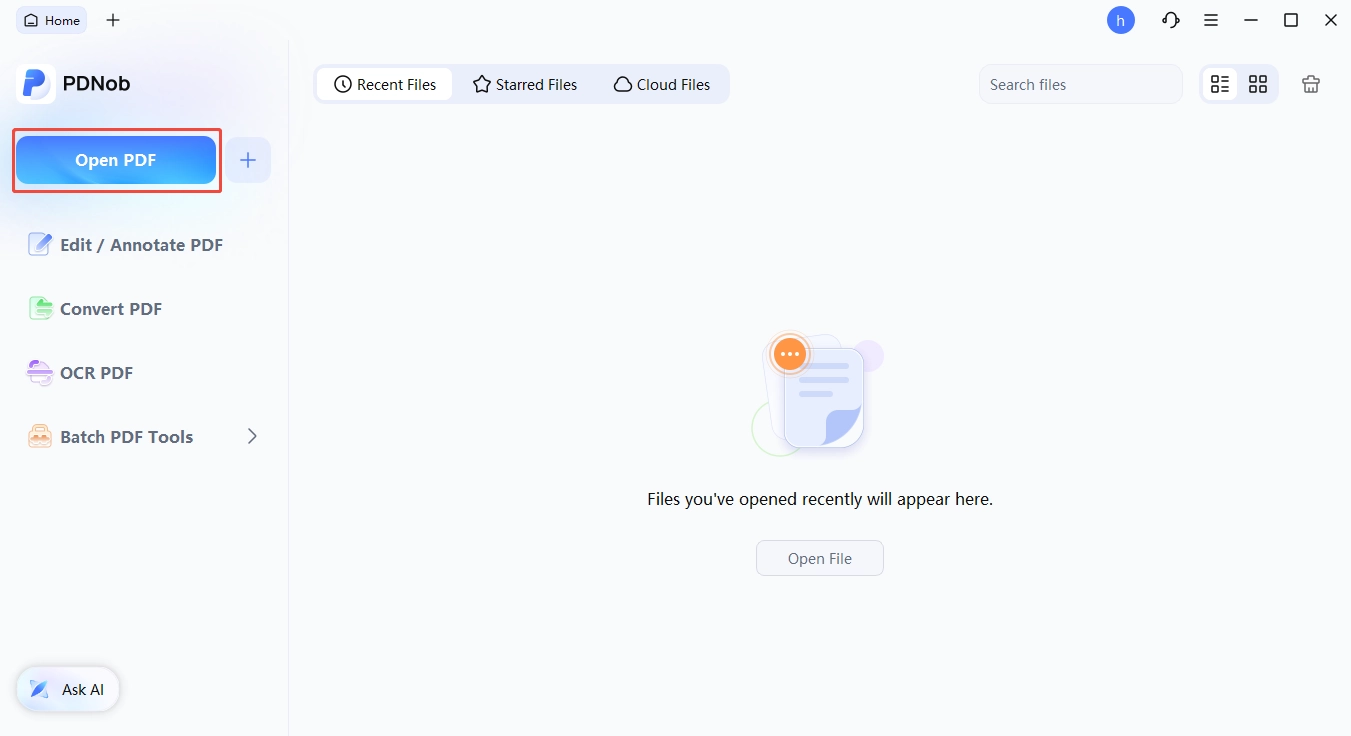


sharing research with a remote team, sending a polished proposal to a client, distributing a course packet to students, or sending a contract for review without asking anyone to download a 60MB attachment. Especially useful for PDF reports that exceed typical email size limits. The recipient gets a clean URL, not a bounced message.
Wrapping Up
The right way to save a webpage as a PDF comes down to three things: how long the page is, what device you're on, and what you plan to do with the file after.
If you only do this once a month, the built-in tools across Windows, macOS, iOS, and Android already cover it. If you do it every week — research packets, client reports, course materials, anything that ends up in someone else's inbox — the gap between native print and a proper PDF tool shows up fast. Native tools give you a file. PDNob PDF Editor gives you a file you can edit, annotate, and turn into a private shareable link without bouncing it through email attachments.
Frequently Asked Questions
Q1. Q1: How to save a page as a PDF on any device?
A1: Every modern browser supports this natively. On Windows and macOS, use the print dialog and select "Save as PDF." On iPhone, iPad, and Android, use the Share menu, tap Print, then pinch outward (iOS) or select "Save as PDF" in the preview.
Q2. Q2: How to save a webpage as a PDF if it's behind a paywall?
A2: Browser print tools can capture any page your browser can render, including paywalled content you've unlocked. Since tools like Google Docs can't fetch URLs behind a login, use the native Chrome or Safari print method instead, while ensuring you respect redistribution terms.
Q3. Q3: How to pdf a website article correctly so images stay intact?
A3: First, scroll the entire page to trigger lazy-loaded images. Then, ensure "Graphics" and "Background graphics" are enabled in the print dialog. For tricky pages, use a converter with a real browser engine (like PDNob) to reliably capture all visual elements.
Q4. Q4: How to make a PDF of a website article with clean formatting?
A4: Google Docs is the easiest free option for stripping ads and normalizing typography. For higher-fidelity results that preserve fonts and layout, use Safari's native export on macOS. You can also use PDNob to tweak text and images before exporting the final PDF.
Q5. Q5: How to make a PDF of an entire webpage without losing the footer
or comments?
A5: Native print tools often miss content outside the viewport. To capture the full page, use an online converter or a desktop tool like PDNob that renders the entire scroll length. Always verify the final page count to ensure the footer and comments weren't truncated.
Q6. Q6: How to save a webpage as a PDF, which method is best for offline
reading?
A6: For quick offline reading on a phone, Safari (iOS) or Chrome (Android) print-to-PDF is the fastest option. For long articles requiring full content preservation, use an online web-to-PDF converter. For professional workflows involving editing and sharing, PDNob offers the most comprehensive solution.



- Make scanned PDFs searchable and editable with 99% OCR precision
- Batch convert PDFs to Word, Excel, PPT, images, PDF/A, Text, EPUB, etc., up to 30% faster
- Edit PDFs easily like Word, including text, images, watermarks, links, and backgrounds
- Annotate PDF with highlights, comments, shapes, stickers, and stamps
- Run smoothly on any PC without lags or crashes, even on low-spec machines
 Secure Download
Secure Download
Speak Your Mind
then write your review
Speak Your Mind
Leave a Comment
Create your review for PDNob articles

Related articles

AI Tools Writer / Workflow Analyst
Rachel has spent the last 5 years testing and writing about AI-powered tools across writing, design, and research workflows. She focuses on practical AI tool usage, helping knowledge workers turn generative AI into everyday productivity.


