
 Home
>
PDF Tips
>
Acrobat Collaboration Synchronizer: How to Disable It?
Home
>
PDF Tips
>
Acrobat Collaboration Synchronizer: How to Disable It?
Acrobat Collaboration Synchronizer: How to Disable It?
Quick Answer: Acrobat Collaboration Synchronizer (AdobeCollabSync.exe on Windows, AdobeCollabSync on Mac) is a legitimate Adobe Acrobat background process for shared reviews, real-time comments, and cloud syncing. It's safe to disable if you don't collaborate on PDFs, and doing so can reduce CPU usage, file-locking, and slow startup without affecting normal PDF editing.
You've opened Task Manager or Activity Monitor and spotted a process called "Acrobat Collaboration Synchronizer" quietly eating memory in the background. It's one of the most-searched Adobe processes precisely because it runs without asking, restarts itself after you kill it, and occasionally locks a PDF file you already closed.
This article shares what the process actually does, when it's worth keeping, when it's safe to disable, and exactly how to turn it off or remove it on both Windows and Mac. You'll also learn why Adobe keeps reinstalling it after every update, and what to use instead if you'd rather skip the whole problem.
What Does Acrobat Collaboration Synchronizer Do?
For users who think, "What does Acrobat Collaboration Synchronizer do," it is Adobe's background sync engine for shared PDF workflows. It operates continuously to keep comments, edits, and file versions updated across devices and collaborators without requiring manual refreshes or uploads. The Synchronizer specifically manages the following:
- Keeping shared reviews and comments synced in real time.
- Syncing PDFs through Adobe Document Cloud across devices.
- Maintaining version history for shared documents.
- Sending notifications when collaborators comment or edit files.
- Coordinating with Acrobat, Reader, and Creative Cloud apps.
- Managing permissions for shared documents.
None of this is hidden or malicious. It's a legitimate Adobe component installed with Acrobat DC, Acrobat Pro, and Acrobat Reader. The confusion arises because Adobe installs it automatically and launches it at login, even if you never use shared reviews.
Is It Safe to Disable or Stop Acrobat Collaboration Synchronizer?
Yes, disabling or stopping Acrobat Collaboration Synchronizer is safe for most users. It won't corrupt your PDFs, break Acrobat's editing tools, or affect files you're not actively co-reviewing.
The only downside is functional. If you disable it during a shared review, comments and edits won't sync until you re-enable it or reopen Acrobat.
But if you don't use Adobe's shared review or cloud collaboration features, disabling it has virtually no downside. It isn't required for license validation, PDF rendering, printing, or saving, so normal PDF editing functions exactly as before.
The Real Problems It Causes when Starting up Acrobat Collaboration Synchronizer
Beyond simply using system resources, Acrobat Collaboration Synchronizer is behind several recurring complaints in Adobe's forums and support communities. Here's what usually happens when Acrobat Collaboration Synchronizer starts up:
- High CPU usage and fan noise: It periodically checks Adobe's cloud servers for updates and comment activity, which can cause sustained CPU load, spinning fans, or brief display flickers.
- File locking: It may keep a PDF locked after you've closed it. This prevents you from moving, renaming, or deleting the file until the process is stopped or the system is restarted.
- Slower startup: As it launches at login, it adds to the background processes competing for resources during boot.
- Unnecessary memory usage: It typically uses around 40--50 MB of memory while idle, which is wasteful if you never use shared reviews.
- Silent reinstallation: Acrobat updates often add it back to your Startup or Login Items, even after you've disabled or removed it.
- No obvious off switch: There's no dedicated "Collaboration Synchronizer" toggle in Acrobat's settings, so disabling it isn't straightforward.
Acrobat Collaboration Synchronizer on Startup: Do You Need It?
Whether you need Acrobat Collaboration Synchronizer at startup depends on whether you periodically collaborate on PDFs in real time. If yes, keep it enabled so comments and edits sync instantly. But if not, there's little reason for it to run every time you log in.
Most individual users, like freelancers, students, and anyone who mainly reads, signs, or fills out PDFs, never use Adobe's shared review or Document Cloud sync features. Teams that rely on shared reviews, live commenting, or cross-device syncing should leave it enabled, as disabling it stops real-time syncing (though comments still save). For everyone else, it's safe to remove it from startup and let Acrobat launch it only when needed.
How to Disable Acrobat Collaboration Synchronizer
You can disable it at the app-preference level (recommended, since it's least likely to get overwritten by an update) or at the OS level. Here are steps regarding Acrobat Collaboration Synchronizer and how to disable it on Windows and Mac:
Method 1: Turn Off the Setting That Triggers It (Windows & Mac)
-
Open "Adobe Acrobat Reader DC" and choose "Help." Sign in (create a free Adobe account if needed).
-
Head to "Edit." Choose "Preferences." Tap "Adobe Online Services."
-
Beneath "Sync settings," uncheck "Sync preferences across devices and document services." Hit "OK."
Head to "Menu." Choose "Help." Tap "Sign Out" and confirm.


Method 2: Remove it from Startup (Windows)
-
Tap the "Windows Start menu" button. Type "startup." Select "Startup apps."
Find "AdobeCollabSync" or "Adobe Collaboration Synchronizer."
Right-click it and choose "Disable."
Restart your PC to confirm it no longer launches at startup.

Method 3: Remove it from Login Items (Mac)
-
Open "System Settings." Pick "General." Tap "Login Items" (or System Preferences > Users & Groups > Login Items on older macOS).
-
Select "AdobeCollabSync" or "Acrobat Collaboration Synchronizer." Click the button for Acrobat Collaboration Synchronizer to disable on Mac.
-
You can also head to "Acrobat." Select "Preferences." Tap "Internet."
-
Disable "Allow speculative downloading in the background," as it may prevent Acrobat from relaunching the helper app.


Method 4: Force-Quit It
-
In Windows: Open "Task Manager." Choose "Processes."
Right-click "AdobeCollabSync.exe," and select "End Task."
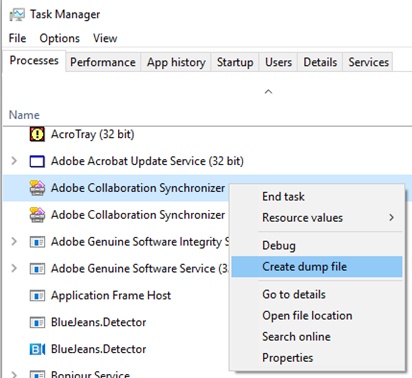
- In Mac: Open "Activity Monitor," search for "AdobeCollabSync," select it, and click the "X (Stop)" button to force-quit Adobe Collaboration Synchronizer on Mac.

Methods 2--4 only stop the process for the current session. If you don't disable the Tracker setting in Method 1, Acrobat can relaunch the service the next time you open a shared or commented PDF.
How to Fully Uninstall Acrobat Collaboration Synchronizer
Uninstalling goes a step beyond disabling by removing the executable, preventing it from relaunching until a future Acrobat update reinstalls it. It's a more aggressive fix, best reserved for cases where disabling the service hasn't stopped recurring CPU spikes or file-locking issues. Here's how you can perform an Acrobat Collaboration Synchronizer uninstall:
On Windows
-
Open "File Explorer" and head to Acrobat's installation folder (typically C:\Program Files (x86)\Adobe\Acrobat DC\Acrobat\, though the path varies by version).
Locate "AdobeCollabSync.exe."
-
Rename it (for example, add .bak) instead of deleting it, making the change easy to reverse.
-
Restart your PC and confirm the process no longer appears in "Task Manager."
-
Optionally rename "FullTrustNotifier.exe," a related notification helper some users also disable.

On Mac
Quit Acrobat completely.
-
Open "Finder." Choose "Applications" and search for the "AdobeCollabSync helper app" (it may be stored in a hidden Adobe support folder).
Move it to the "Trash."
Empty the "Trash" and restart your Mac.
Recheck Login Items to ascertain it wasn't added back.

Keep in mind that renaming or deleting the executable isn't officially supported by Adobe. While it usually stops the process, shared review notifications and comment syncing may stop functioning without warning. If you use those features, disabling the service through "Preferences" is the safer option.
Why It Keeps Coming Back After Updates
Acrobat Collaboration Synchronizer reinstalls itself because it's part of Acrobat's core installation, not an optional component. Whenever Acrobat or Reader installs a major update, Adobe restores AdobeCollabSync and often re-registers it to launch at startup, even if you'd previously disabled or removed it.
This is common across Adobe's Creative Cloud ecosystem, where sync-related background services are treated as core infrastructure. Unfortunately, there's no Adobe-supported way to disable it permanently across updates. If you update Acrobat regularly, expect to reapply your preferred fix a few times a year.
A Lightweight PDF Editor Compared to Adobe Acrobat: PDNob
If the real issue isn't just Acrobat Collaboration Synchronizer, it may be Acrobat's overall overhead, including background services, Creative Cloud integration, and an ongoing subscription. In that case, it's worth considering whether you need the full Acrobat suite.
A lighter PDF editor like PDNob includes the tasks most people use Acrobat for, including editing, annotations, OCR, merging, splitting, and PDF conversion.
It has no forced background sync process, offers faster startup without a Document Cloud handshake, and provides a cleaner interface focused on everyday PDF editing. For solo users, students, and small teams, that's often a worthwhile trade-off.





FAQs About Acrobat Collaboration Synchronizer
Q1. Is Acrobat Collaboration Synchronizer a virus?
A1: No. It's a legitimate Adobe process (AdobeCollabSync) installed with Acrobat and Reader. However, malware can sometimes use similar names. So, verify that the executable is located in your official Adobe installation folder (such as C:\Program Files\Adobe\...) and not in a temporary or unrelated directory.
Q2. Do I need it if I don't collaborate on PDFs?
A2: No. If you don't use Adobe's shared reviews, live commenting, or Document Cloud sync, you can safely disable Acrobat Collaboration Synchronizer. You can also remove it from startup without affecting normal Acrobat functionality.
Q3. Why does it keep restarting after I disable it?
A3: There are two reasons for that. An Acrobat update reinstalled it, or "Automatically Check for New Comments and Form Data" is still enabled in "Tracker" preferences, causing the service to relaunch. Disabling that setting, not just ending the process, is what keeps the fix in place.
Q4. Is it safe to end the process in Task Manager?
A4: Yes. Ending the process is safe and won't harm Acrobat or your PDFs. It's only a temporary fix, though. The process usually restarts the next time you open Acrobat or a shared PDF. To keep it from coming back, disable the related startup or "Preferences" setting as well.



- Make scanned PDFs searchable and editable with 99% OCR precision
- Batch convert PDFs to Word, Excel, PPT, images, PDF/A, Text, EPUB, etc., up to 30% faster
- Edit PDFs easily like Word, including text, images, watermarks, links, and backgrounds
- Annotate PDF with highlights, comments, shapes, stickers, and stamps
- Run smoothly on any PC without lags or crashes, even on low-spec machines
 Secure Download
Secure Download
Speak Your Mind
then write your review
Speak Your Mind
Leave a Comment
Create your review for PDNob articles

Related articles

AI Tools Writer / Workflow Analyst
Rachel has spent the last 5 years testing and writing about AI-powered tools across writing, design, and research workflows. She focuses on practical AI tool usage, helping knowledge workers turn generative AI into everyday productivity.


