

PDNob Online is currently available only on Windows and Mac desktop computers. Please switch to a desktop browser to use our features.
Founded in 2007, Tenorshare PDNob is trusted by millions to simplify work.

8,508,519 files have been successfully processed with AI image OCR for free.
Get PDNob Desktop, Your All-in-One PDF Solution!
3 Simple Steps to Extract Text from Any Image:
Upload your image file — photos, screenshots, or scanned pictures — to PDNob.
Select the image language and click "OCR PDF" to launch AI-powered text recognition.
Download your output file with fully searchable and selectable text — ready to copy, edit, or share.
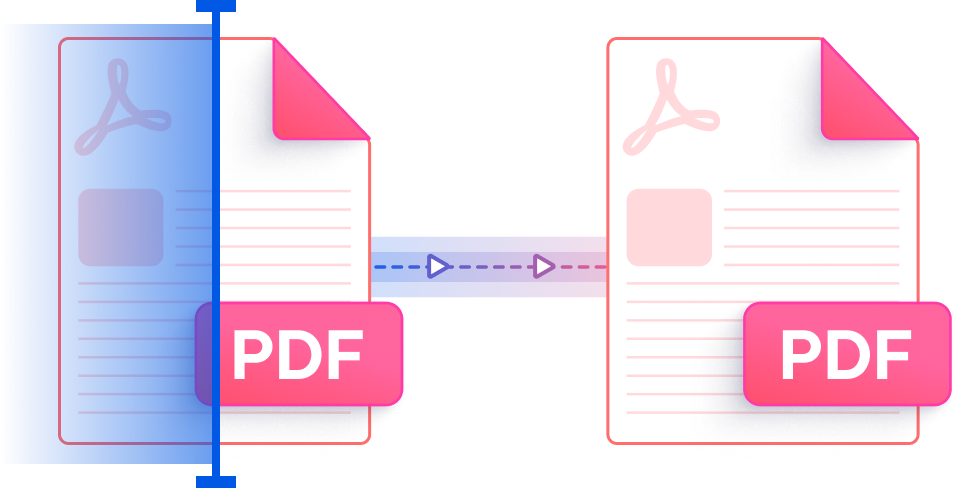
Photos of whiteboards, screenshots of contracts, and JPG exports of invoices all embed text as pixels — not characters. You can't highlight, search, or copy a single word without OCR. This affects everything from passport scans to W-2 form photos captured on a phone.
Re-entering data from a 3-page supplier quote image or a scanned NDA can take 30–60 minutes per document — and introduces transcription errors. Teams processing purchase orders, insurance claim images, or utility bill photos face this delay daily across dozens of files.
A faded receipt, a phone photo taken at an angle, or a low-light image of a driving license or student ID often produces garbled output in basic OCR apps. Standard tools struggle with uneven contrast, skewed text, or bleed-through from double-sided documents.
Extracting text from a Chinese business card photo, a Japanese product label image, or an Arabic lease agreement scan requires proper multi-script OCR — something most browser-based tools simply don't offer. Switching between separate tools for each language adds friction and inconsistency.
PDNob's AI OCR engine — built on ABBYY technology — analyzes every pixel of your image to detect and recognize characters with exceptional precision. From smartphone photos and screenshots to scanned documents and whiteboards, the tool Extract Text from Image with OCR, converts embedded text into machine-readable content that you can interact with directly, without any manual retyping or copy work.
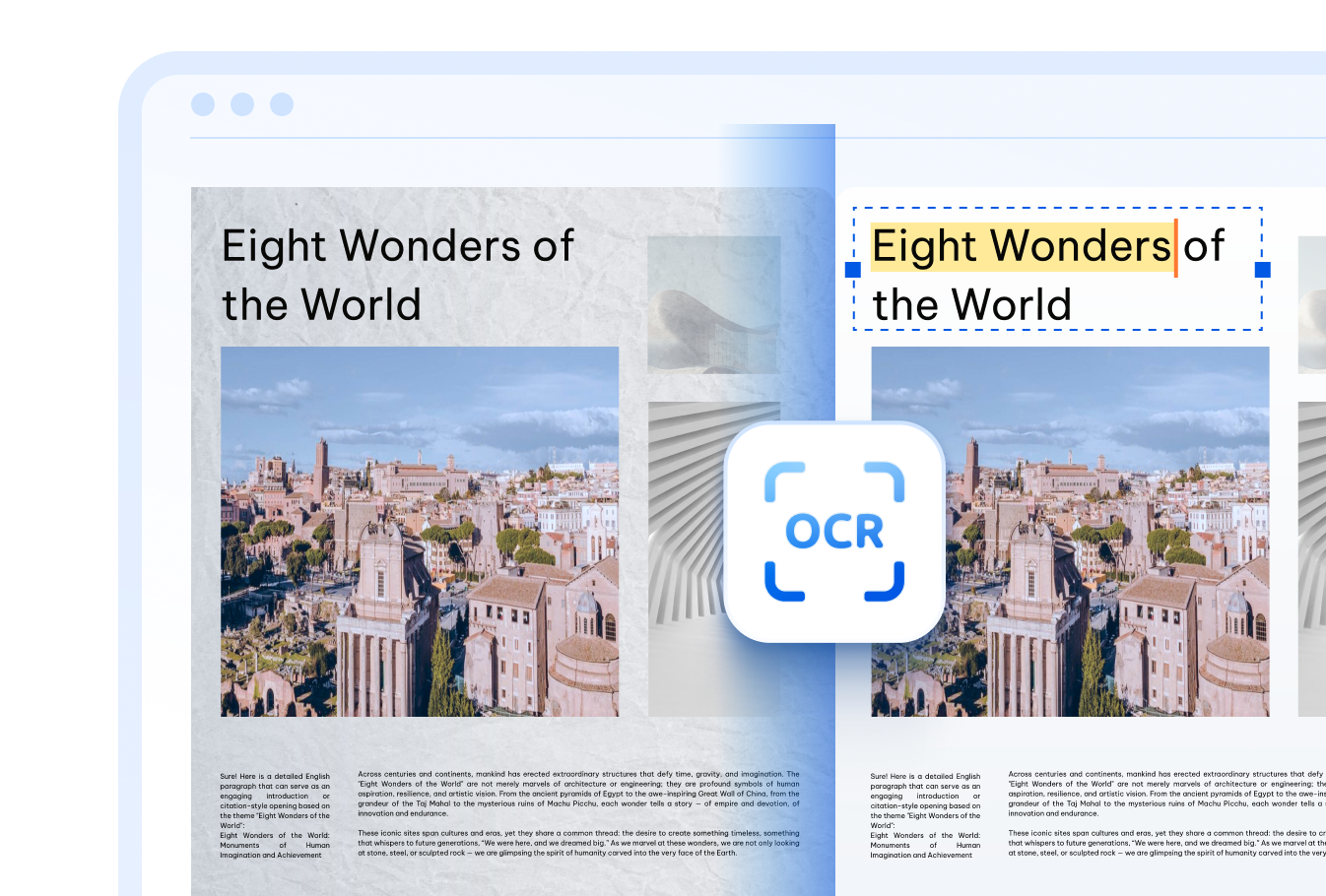

Whether your image contains English, Chinese, Japanese, Korean, Arabic, French, German, Spanish, Russian, Portuguese, Italian, Dutch, Turkish, Indonesian, Thai, or another supported language, PDNob accurately identifies and helps extract text from image with OCR without switching tools.

PDNob handles a wide range of image sources — photos taken on a phone, desktop screenshots, whiteboards captured with a camera, or images exported from other apps. The AI OCR adapts to varying lighting conditions, angles, and image resolutions to return clean, usable text.

Your image files are sent over TLS-encrypted connections and permanently deleted from PDNob's servers once processing is complete. No data is retained, reviewed, or shared — your content remains entirely your own.
Extract citations and data tables from journal article screenshots or scanned textbook pages, turning image content into editable text for literature reviews and research notes.
Convert photos of lab notebooks, handwritten experiment logs, or conference poster images into searchable digital records — reducing transcription time by up to 80% per document.
Digitize photo-captured lease agreements, court filings, or notarized affidavit images to extract clause text for review, keyword search, and archiving without retyping a single line.
Pull key dates and party names from scanned NDAs or photographed incorporation certificates in seconds — speeding up due-diligence workflows that previously required manual document review.
Extract line items and totals from photos of receipts, supplier invoices, or expense claim images — feeding accurate figures directly into accounting software without manual data entry errors.
Process images of bank statements, tax forms like W-2s or 1099s, and utility bills captured on mobile — converting picture-based financial records into selectable text for audit trails and reporting.
Extract candidate details from photographed resumes, scanned employment contracts, or images of degree certificates and professional licenses — building searchable talent records in seconds.
Convert images of onboarding forms, I-9 identity verification documents, or employee handbook acknowledgment sheets into editable text — cutting HR paperwork processing time significantly.
Students and teachers can photograph textbook pages, handwritten notes, or printed slides and instantly convert image text into editable, searchable content — making it easier to highlight, annotate, and study without manual transcription.
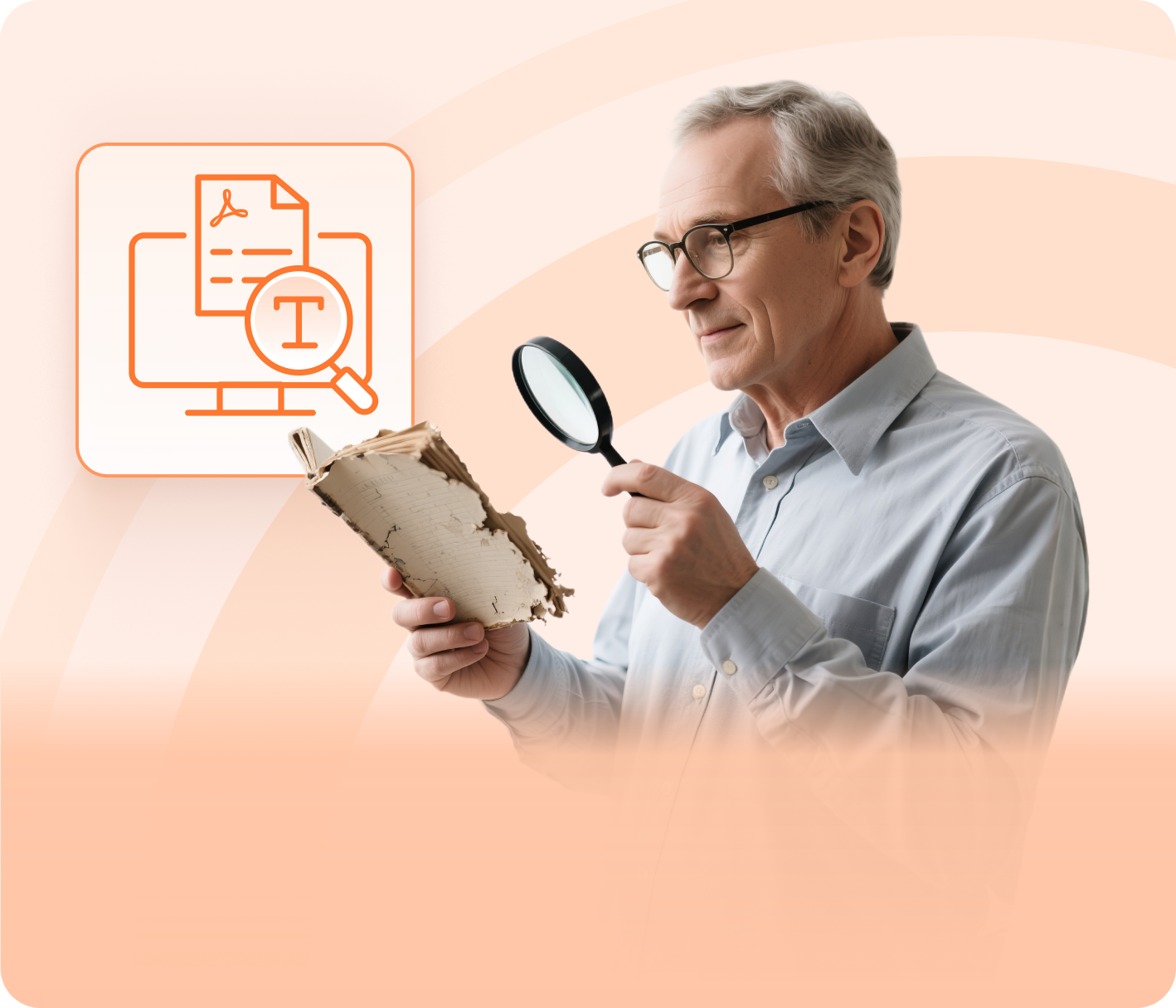


Translators, international teams, and language professionals can use PDNob to extract text from image with OCR written in foreign scripts — converting picture-based content into selectable text that can be directly pasted into translation tools or processed further.



Office teams dealing with photo-captured receipts, business card images, printed forms, or whiteboard snapshots can use AI OCR to pull text out of images and feed it directly into spreadsheets, reports, or databases — cutting down data entry time significantly.



Take image text recognition further with PDNob PDF Editor — edit recognized content directly, add annotations, apply digital signatures, compress output files, and manage everything entirely offline. Designed for professionals who need a complete document workflow beyond simple text extraction.

Yes. PDNob's AI OCR tool runs entirely in your browser — upload your image, choose the language, and click OCR PDF to start processing. The result gives you fully searchable and selectable text without installing anything on your device.
PDNob accepts common image file types including JPG, JPEG, PNG, BMP, TIFF, GIF, and WEBP. Whether your file comes from a phone camera, a scanner, or a screen capture tool, you can upload it directly and extract the text with the AI OCR engine.
PDNob's desktop OCR engine, powered by ABBYY technology, achieves up to 99% recognition accuracy on clear, well-lit images. The cloud-based tool delivers strong results for most standard photos and screenshots. Accuracy tends to be higher on high-resolution images with good contrast and a consistent font.
Yes. PDNob supports over 16 languages for AI OCR, including Chinese (Simplified and Traditional), Japanese, Korean, Arabic, and many European languages. Select the correct language before running OCR to get the best recognition results for non-Latin scripts.
OCR accuracy depends largely on image quality. Blurry photos, low contrast, extreme angles, or very small font sizes can reduce recognition precision. For best results, use a high-resolution, well-lit image where text is clearly visible. The PDNob desktop application offers additional pre-processing options to improve output on difficult images.
The online version of PDNob supports image uploads up to 15MB per file. For larger or higher-resolution images, the PDNob desktop application handles them without a file size restriction, making it a better option for professional or high-volume image OCR tasks.
Edit, merge, sign, and convert PDFs effortlessly.
 PDNob Online
750,796,000 Users

PDF Leaders
Since 2007
10M+ Docs
Protected Daily
ISO
Certified Tools
Your Files
Never Stored