Comment Ajouter, ,Modifier et Supprimer des Liens dans un PDF avec PDNob - Guide d'utilisation
PDNob PDF Editor vous permet de gérer entièrement les hyperliens dans vos PDF. Vous pouvez créer des liens vers des sites web, accéder directement à des pages spécifiques ou connecter des fichiers externes, afin de rendre vos documents plus interactifs et plus faciles à parcourir.
1. Ajouter/Modifier un lien dans un PDF
Pour insérer un nouvel hyperlien ou modifier un lien existant, ouvrez votre PDF puis accédez à l'onglet Édition dans la barre d'outils supérieure. Sélectionnez ensuite l'option Lien pour commencer.

- Cliquez et faites glisser pour définir la zone où le lien cliquable apparaîtra.


- Aller à une vue de page : Entrez le numéro de page pour naviguer à l'intérieur du PDF.
- Ouvrir une page web : Saisissez une URL pour créer un lien vers un site externe.
- Ouvrir un fichier : Choisissez un chemin de fichier pour connecter un document externe.

2. Supprimer un lien dans un PDF
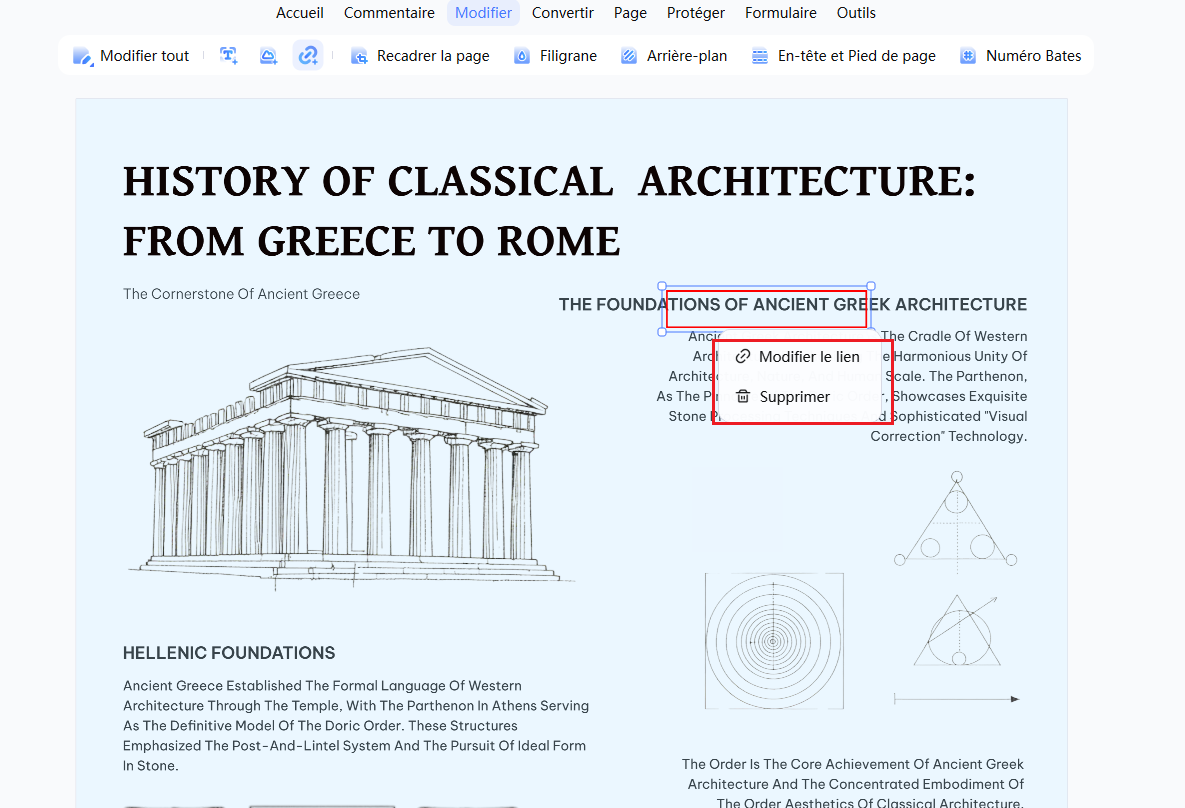
PDNob propose également une méthode simple pour supprimer rapidement les hyperliens de votre PDF.
- Activez l'outil Lien depuis la barre d'outils afin d'afficher toutes les zones de liens existantes.

- Cliquez sur Supprimer puis confirmez en appuyant sur OK afin de retirer tous les liens sélectionnés.