Comment Fusionner des PDF avec PDNob - Guide d'Utilisation
Avec Tenorshare PDNob, vous pouvez facilement rassembler plusieurs fichiers PDF en un seul document complet. Que vous ayez à gérer quelques pages ou plusieurs documents, le processus de fusion est rapide, ordonné et simple. Suivez le guide ci-dessous pour créer un PDF unifié.
-
Ouvrir le panneau des outils par lots
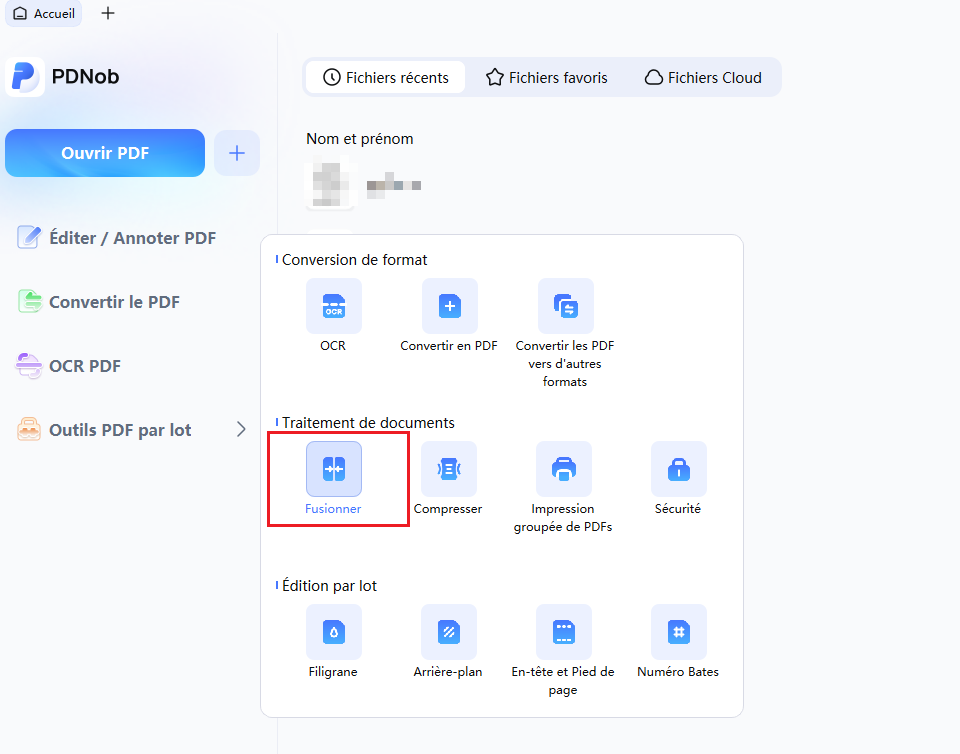
Lancez PDNob Éditeur PDF et cliquez sur l'option « Outils par lots » dans l'interface principale. Ce panneau donne accès aux outils conçus pour gérer plusieurs fichiers à la fois.

-
Choisir la fonction Fusionner
Dans le panneau Outils par lots, sélectionnez « Fusionner ». Une nouvelle fenêtre apparaîtra où vous pourrez gérer les fichiers que vous souhaitez rassembler en un seul PDF.
-
Ajouter des PDF à fusionner
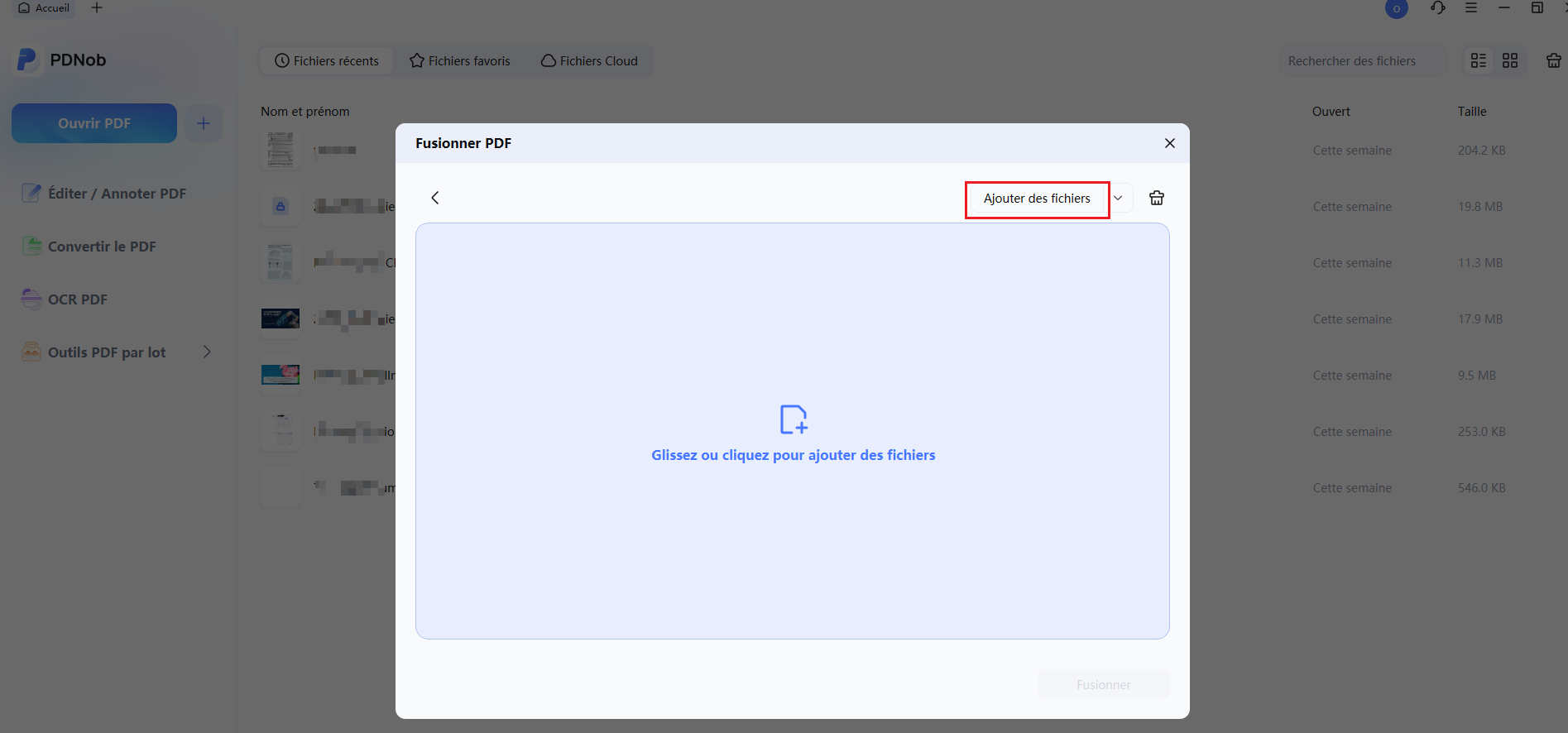
Cliquez sur « Ajouter des fichiers » pour charger les documents PDF que vous souhaitez fusionner. Ajustez l'ordre si nécessaire, puis cliquez sur « Fusionner » pour commencer à créer un seul document.
-
Enregistrer votre PDF fusionné
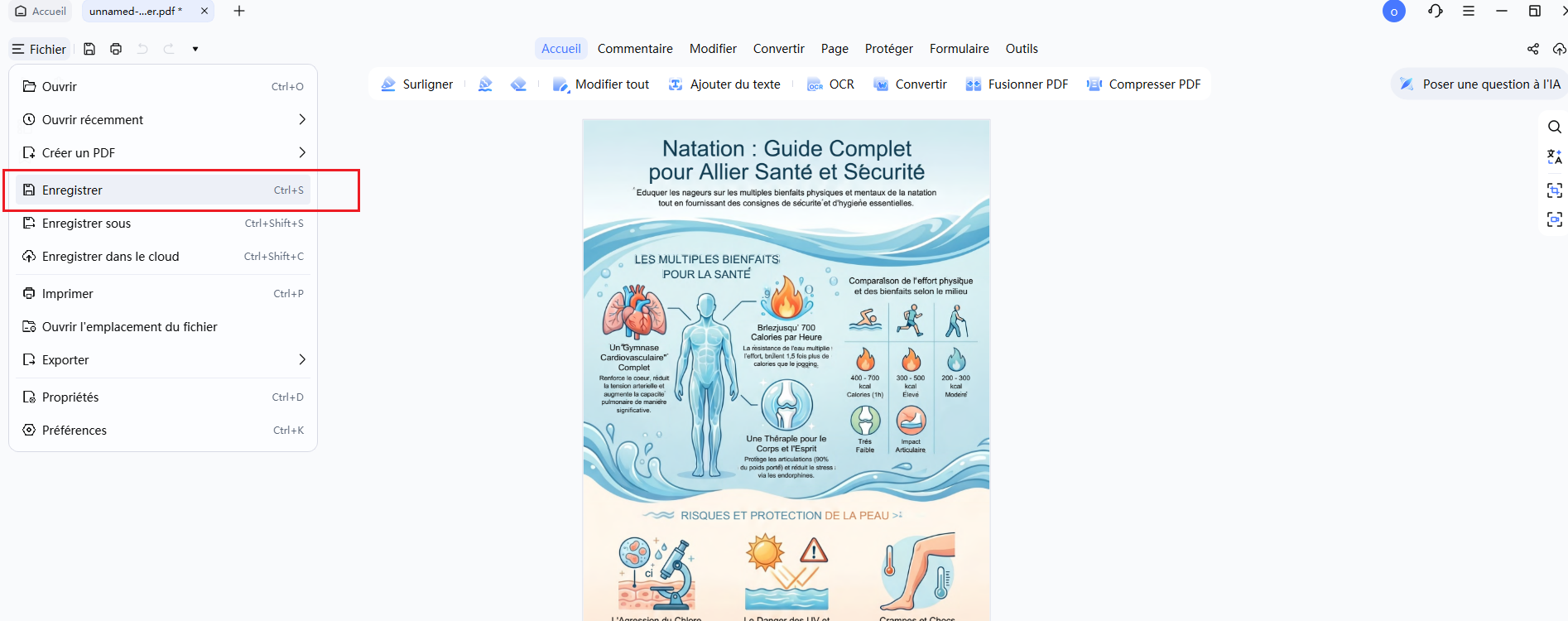
Une fois le processus de fusion terminé, accédez à « Fichier » dans le coin supérieur gauche et choisissez « Enregistrer » pour stocker votre nouveau PDF. Votre document consolidé est maintenant prêt à être utilisé.