

PDNob Online is currently available only on Windows and Mac desktop computers. Please switch to a desktop browser to use our features.
Founded in 2007, Tenorshare PDNob is trusted by millions to simplify work.


8,508,519 files have been successfully converted to searchable PDF for free.
Get PDNob Desktop, Your All-in-One PDF Solution!
3 Easy Steps to Create Searchable PDF Online:
Upload your scanned PDF or image file to PDNob.
Select your document language and click "OCR PDF" to begin processing.
Download your newly created searchable PDF — ready to search, select, and copy text instantly.
PDNob uses ABBYY-powered OCR technology to recognize and index text inside scanned PDF pages with outstanding precision. Whether your document originates from a flatbed scanner, a smartphone camera, or a fax printout, the engine accurately identifies each character and embeds it as real, searchable text — eliminating the need to retype a single word.
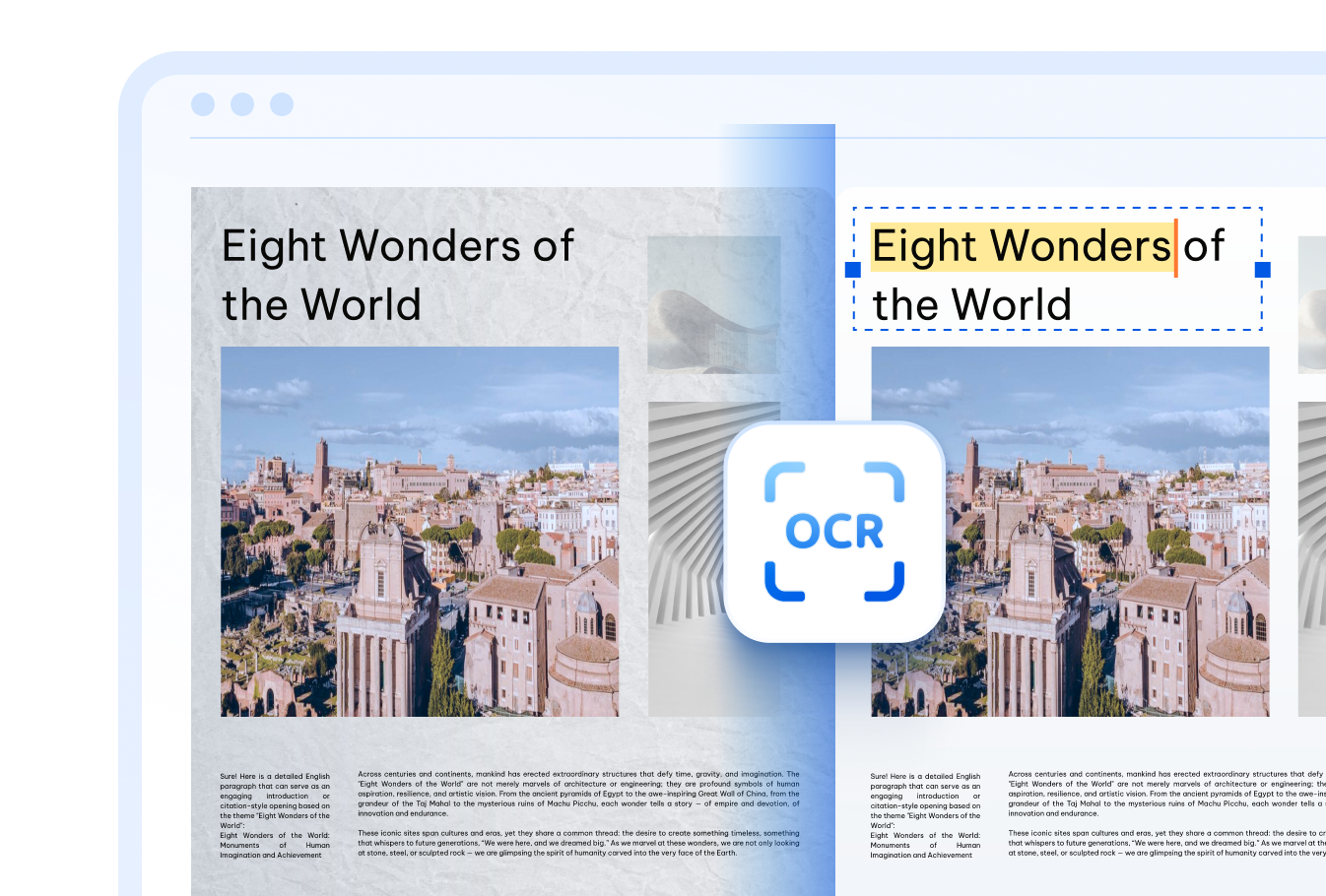

Create searchable PDFs in over 16 languages, including English, Chinese (Simplified & Traditional), Japanese, Korean, Arabic, French, German, Spanish, Russian, Portuguese, Italian, Dutch, Turkish, Indonesian, Thai, and more — all in the same workflow.

Even degraded scans, documents with uneven lighting, faded ink, or mixed fonts can be converted to create searchable PDFs with PDNob. The cloud OCR engine handles complexity at source — no cleanup or pre-processing needed on your end.

Every file is transmitted through TLS-encrypted channels and purged from our infrastructure once processing is complete. Your confidential documents never linger on our servers — giving you peace of mind every time you create searchable PDF.
Students and teachers rely on searchable PDFs to quickly locate key terms in lecture notes, scanned textbooks, or research papers — saving time and making study sessions more focused.



Translators and global teams working across different languages can make PDFs searchable in their target language, streamlining terminology lookups and cross-referencing without manual retyping.



Office teams handling scanned contracts, HR documents, or supplier records can make those files instantly searchable — turning paper archives into a structured, retrievable digital library without changing existing workflows.



Go beyond making PDFs searchable online — PDNob PDF Editor lets you edit the recognized text directly, annotate pages, add signatures, merge documents, and work entirely offline. Built for professionals who need complete control over every PDF.

To create a searchable PDF, upload your scanned file to PDNob, choose the document language, and click "OCR PDF." The ABBYY-powered engine scans each page, recognizes the characters, and embeds a text layer — giving you a fully searchable PDF to download in about a minute. Files up to 15MB are supported in the cloud version.
This typically happens when a PDF was created by scanning a paper document or saving a photo as a PDF. In these cases, the pages are stored as images — what looks like text to your eyes is actually just pixels. There is no actual text data in the file, so search and copy functions do not work. Running the file through an OCR tool like PDNob creates a real text layer underneath the images, making the document fully searchable.
On a Mac, you can make a scanned PDF searchable directly in your browser using PDNob — no Adobe subscription needed. Open Safari or Chrome, upload your PDF to PDNob, select the language, click "OCR PDF," and download the result. macOS Preview also includes a basic OCR option under the "Enhance Scans" feature, though PDNob provides more consistent results across different document types.
No. PDNob adds an invisible text layer behind the existing page images — the document looks exactly the same as your original after processing. Layouts, graphics, and formatting remain untouched. The only change is that the file now contains real, machine-readable text that search tools and copy functions can access.
Yes. PDNob is a browser-based tool, so it runs on mobile devices without requiring any app download. Open your mobile browser, go to the PDNob searchable PDF page, upload your file, and download the processed result — the workflow is identical to desktop. For more intensive tasks or larger files, the PDNob desktop app is recommended.
PDNob's desktop OCR engine, backed by ABBYY technology, reaches up to 99% recognition accuracy on clean, high-resolution scans. The cloud OCR tool delivers strong accuracy for most real-world documents. Results vary based on scan quality, font clarity, and language complexity — higher-resolution source files consistently produce better searchable output.
 PDNob Online
750,796,000 Users

PDF Leaders
Since 2007
10M+ Docs
Protected Daily
ISO
Certified Tools
Your Files
Never Stored