
 Home
>
PDF Tips
>
NotebookLM Gemini Guide: How to Connect for Smarter AI Workflows
Home
>
PDF Tips
>
NotebookLM Gemini Guide: How to Connect for Smarter AI Workflows
NotebookLM Gemini Guide: How to Connect for Smarter AI Workflows
Is there a way to integrate Gemini 2.0 with NotebookLM? --Reddit
Connecting your research tools can save time and make your work easier. If you want better summaries and deeper insights, learning how to connect NotebookLM to Gemini is a smart step. This guide explains everything in simple words.
Even beginners can follow along without confusion. You will learn what you need before starting. Then, you will see how the connection works. Finally, you will discover how to use both tools together for writing, studying, and organizing information more efficiently every day.

Google has renamed NotebookLM to Gemini Notebook. Throughout this article, “NotebookLM” refers to the current Gemini Notebook experience, as the product and its core features remain the same.
Edit NotebookLM slides freely with PDNob. Turn NotebookLM PDFs into fully editable, presentation-ready slides.
 Secure Download
Secure Download

Part 1. Is Gemini Connected to Notebook LM
What Model Does NotebookLM Use
NotebookLM runs on Google's advanced Geminiqa models. As of 2026, it specifically uses Gemini 3 (often referred to as Gemini 3 Flash) to deliver fast, context-aware responses. NotebookLM uses Retrieval-Augmented Generation (RAG) to ground answers in the content you upload. This means your results are more accurate and less prone to hallucinations because the model is pulling directly from your own knowledge base.
What Is the NotebookLM and Gemini Integration
The integration between NotebookLM and Gemini is not done through a traditional API or by copying content manually. Instead, Gemini can directly reference your notebooks in NotebookLM as contextual sources. In simple terms:
- NotebookLM = Your Personal Knowledge Base
- Gemini = Conversational AI
- After connection = Gemini uses your own information to answer questions
Is NotebookLM Already Connected to Gemini
Yes, but with some important details. The ability to connect NotebookLM to Gemini is being gradually rolled out. Not all users see it yet, and availability can differ between Personal accounts, Google Workspace, and Education accounts.
Updates in late 2025 and early 2026 expanded how NotebookLM and Gemini work together. You can now choose NotebookLM as a source inside the Gemini app (e.g., via the "+" button on Gemini.google.com) and link specific notebooks to use in your conversations. When connected, Gemini can:
- Pull information from one or more notebooks to answer questions.
- Generate new content based on your documents.
- Use advanced features like Deep Research.
- Attach notebooks to a "Gem" a customized Gemini bot to create a personalized AI research assistant.
Video Tutorial: How to Edit NotebookLM Slide Decks PDF
Part 2. How to Connect NotebookLM to Gemini
Before You Begin (Education Edition Notes)
Gemini and NotebookLM are included free in all Google Workspace for Education editions. You can use them to enhance learning, research, and classroom workflows. Both tools are accessible via web and mobile apps, and your admin can manage access in the Google Workspace Admin console.
Open the Gemini App
Start or Open a Chat
Tap the Attachment (+) Icon
Choose "NotebookLM"
Select Your Notebook
Confirm the Connection
Visit Gemini in your browser or open the Gemini mobile app on your device.

In the Gemini interface, begin a new conversation where you want to use your NotebookLM content.
In the chat box, click or tap the plus (+) icon to open the list of attachment options.
If your account supports it, you will see a NotebookLM option in the attachments list. Selecting this allows you to connect your NotebookLM notebooks to the Gemini conversation.

If you don't see "NotebookLM" yet, this feature might still be rolling out to your account. Keep checking Google is gradually expanding access in phases.
A list of your NotebookLM notebooks will appear. Choose one or more notebooks you want Gemini to reference as context for your questions.

When you select a notebook, it is attached to the chat. Gemini will use the content from your NotebookLM notebook as a grounded source of information when generating answers.
Once NotebookLM connects to Gemini, exporting PDFs is easy, but editing them can be tricky. PDNob PDF Editor lets you quickly edit NotebookLM text and images, run OCR on scanned files, and convert PDFs to PPT, Word, or Excel — making your AI notes ready for slides or reports in minutes.




Part 3. How to Use NotebookLM in Gemini After Connecting
Once your NotebookLM is connected to a Gemini chat, you can begin using it to enhance your AI workflows in intelligent, context-aware ways.
Ask Context-Based Questions
- "Summarize the main points from Chapter 3 of my notebook."
- "Create a quiz based on the lecture notes I uploaded."
Generate Content from Notebook Material
- Study guides
- Essay drafts
- Lesson summaries
- Flashcards or quizzes
Use Multiple Notebooks Together
Leverage Advanced Gemini Features
Start by asking questions that require detailed understanding of the content in your NotebookLM notebook for example:

Gemini will respond using the specific sources in your connected NotebookLM notebook.
Use Gemini to create new content based on your notebook materials, such as:

You can attach more than one NotebookLM notebook to a Gemini conversation if you need to pull insights from different sources at the same time, ideal for comparing topics or synthesizing knowledge across subjects.

Once connected, you can also use other Gemini tools such as Deep Research, Canvas, or Guided Learning alongside your NotebookLM notebooks to expand what you can do with your educational content.
Part 4: NotebookLM vs Gemini: How They Work Better Together
Difference Between NotebookLM and Gemini
When comparing Gemini vs NotebookLM, it helps to understand that they are built for different strengths.
 Please swipe to view
How NotebookLM and Gemini Work Better Together
Instead of choosing Gemini vs NotebookLM, the smartest approach is to connect NotebookLM to Gemini and use each tool for what it does best.
-
Grounded Facts + Creative Output
Start in NotebookLM to analyze reports, research papers, class notes, or transcripts. Once you have accurate summaries and key points, use Gemini to turn them into blog posts, presentations, lesson plans, or emails. NotebookLM ensures correctness. Gemini adds creativity and polish.
-
Connecting Multiple Knowledge Bases
NotebookLM is excellent for focused, topic-specific notebooks. But when you need a bigger picture across subjects or projects, Gemini can combine insights from multiple connected notebooks in one conversation. This makes cross-topic research much easier.
-
Direct Notebook Access Inside Gemini
After you connect NotebookLM to Gemini, your notebooks act like attached knowledge libraries. Gemini can reference them instantly without re-uploading files. This keeps responses aligned with your latest materials and reduces AI guesswork.
-
Better Multimodal Understanding
NotebookLM helps break down complex documents, while Gemini can expand on that analysis and present it in different formats such as outlines, scripts, visual explanations, or structured learning content.
-
Faster, Smarter Workflow
A powerful workflow looks like this:
NotebookLM → extract insights and key themes
Gemini → transform those insights into finished content
Part 5: How to Edit & Convert NotebookLM PDF to PPT
NotebookLM makes it easy to create polished PDFs and slide decks, but editing them or converting them to PowerPoint can be challenging. Standard PDFs lock text and layout, making updates time-consuming and error-prone. PDNob solves this problem seamlessly.
It offers high-accuracy OCR, preserves your slide structure, and lets you edit text, add annotations, or convert PDFs into fully editable PPT files. With PDNob, your NotebookLM slides become flexible, professional, and ready for any presentation or workflow.
- Full Editing Support -- Edit text, add notes, highlight content, and adjust layouts directly in the PDF.
- High-Accuracy OCR -- Detect and convert image-based PDFs into fully editable text.
- Preserve Layout & Formatting -- Keep slide hierarchy, fonts, and visual structure intact.
- Offline & Secure -- Edit and convert locally without uploading to the cloud.
- Flexible Export Options -- Convert PDFs to PPT, Word, or other formats for reuse.
Steps to Edit & Convert NotebookLM PDF to PPT with PDNob
- Step 1: Launch PDNob PDF Editor on your computer. Go to the OCR PDF option and select the NotebookLM PDF you want to edit.
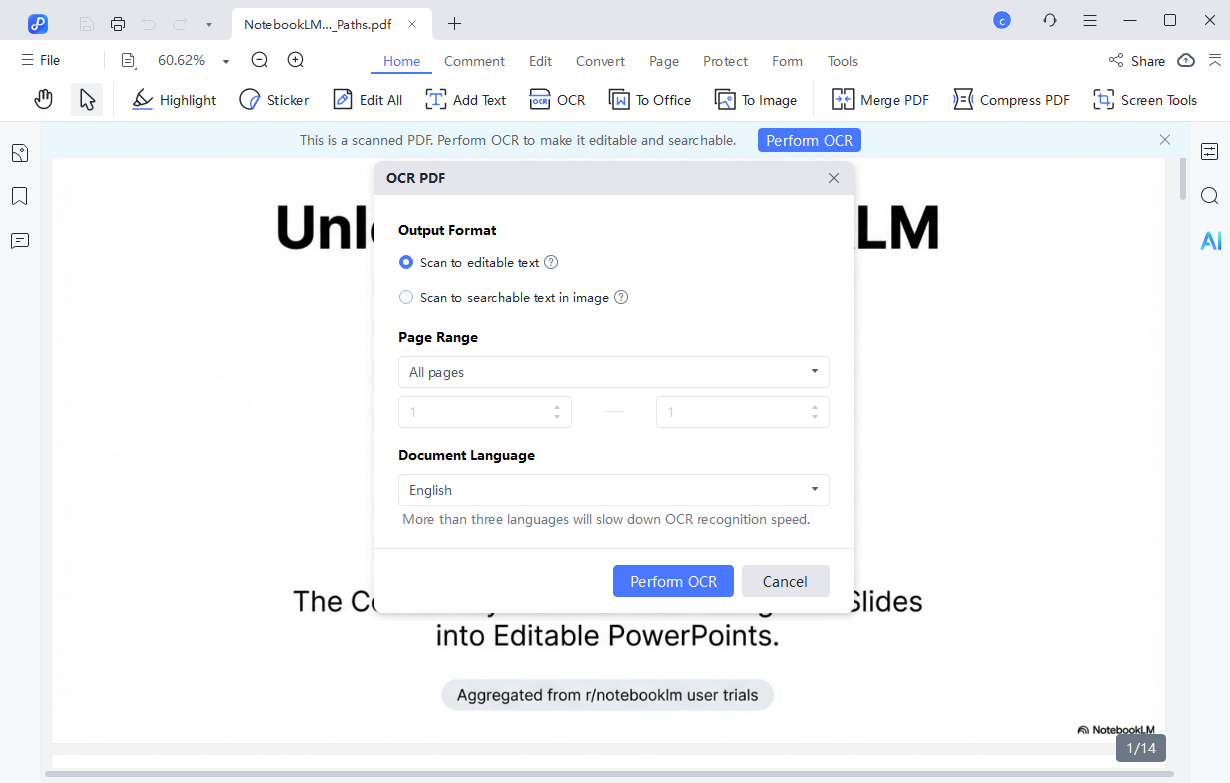
- Step 2: If required, install the OCR module. Then choose “Scan to Editable Text” mode. PDNob will identify all text, separate headings, body content, and background elements—making each slide ready for direct editing.
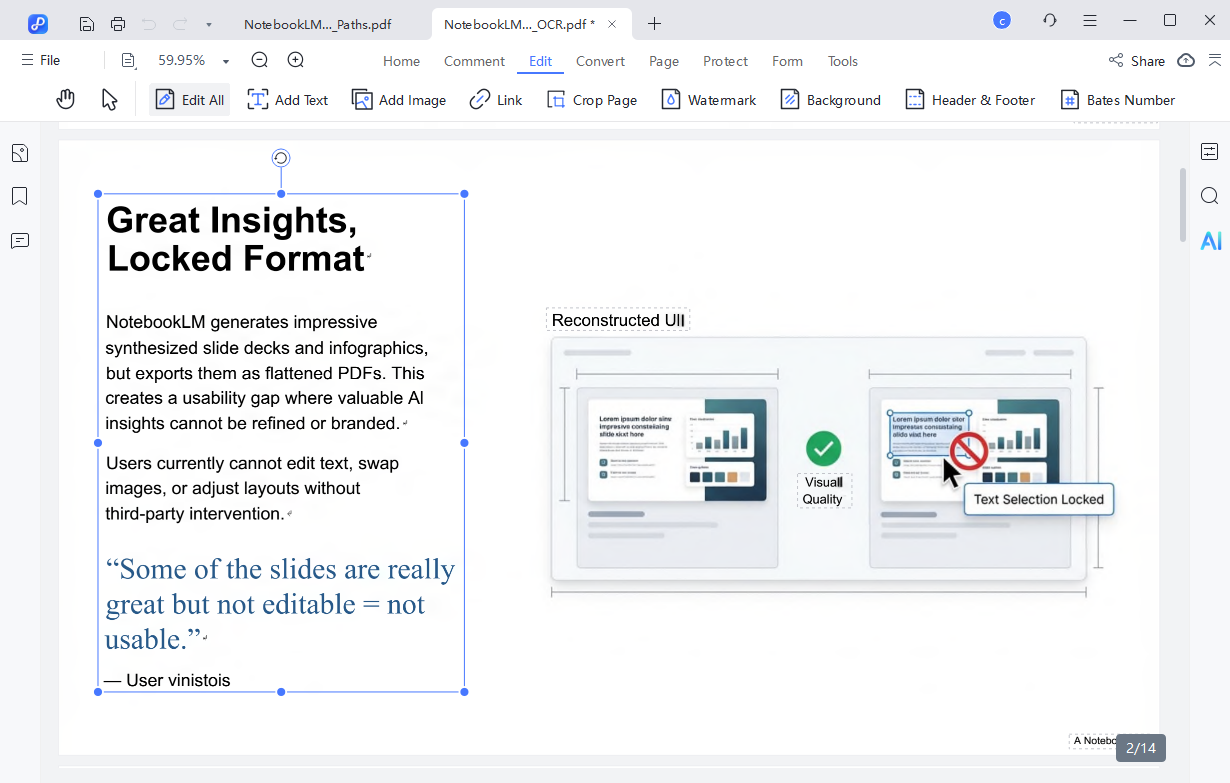
- Step 3: Once OCR is done, the slides are fully editable. You can correct spelling mistakes, move or resize text boxes, adjust charts, or change headings.
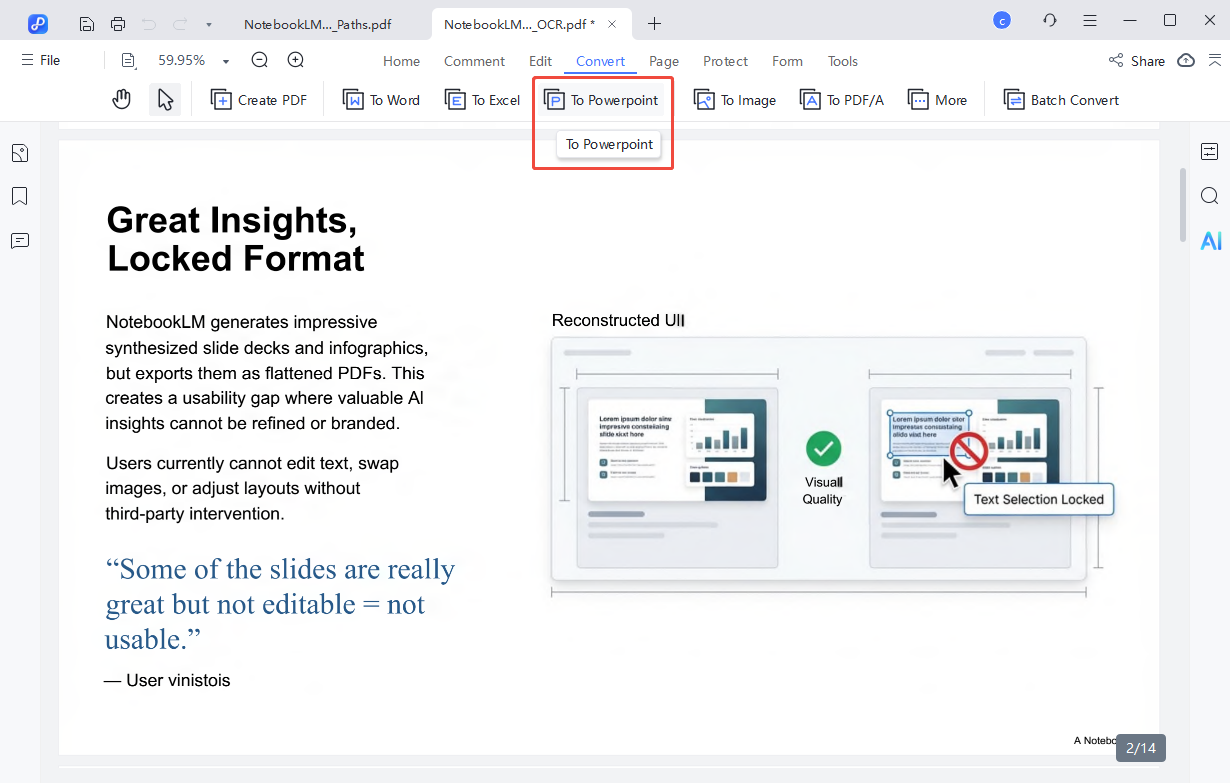
- Step 4: After editing, click Convert to save the slides in the format you need—PowerPoint, PDF, or Word.
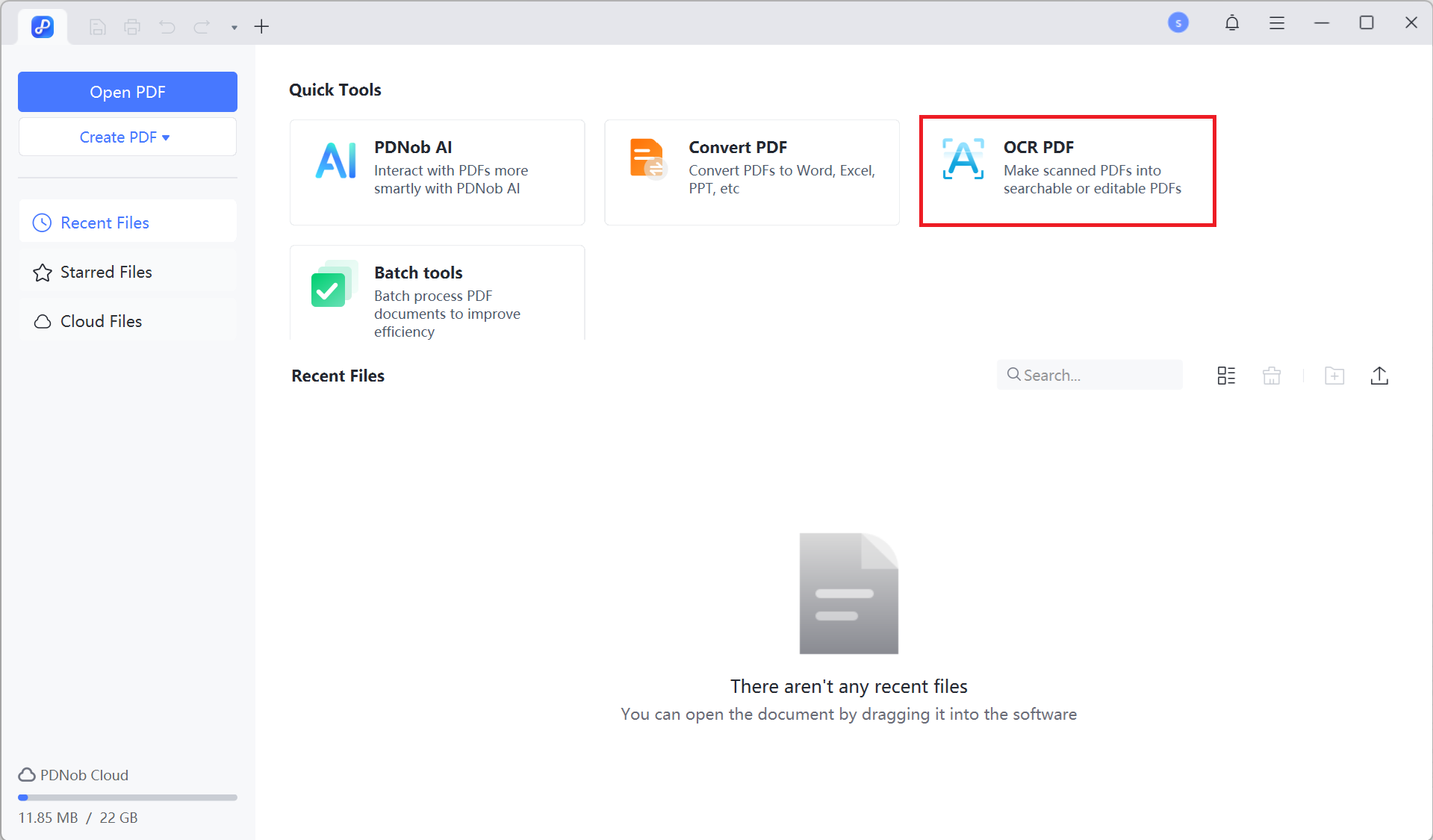

In the Document Language dropdown, pick the language of your source file. Choosing the wrong language may reduce OCR accuracy.
Conclusion:
Getting the most from your AI tools starts when you connect NotebookLM to Gemini. This integration lets you combine NotebookLM's accurate, source-based insights with Gemini's creative abilities for smarter research, writing, and project work. And when you need to edit or turn NotebookLM PDFs into PowerPoint slides, PDNob makes the process simple, accurate, and seamless helping you stay productive while keeping your content fully organized and ready to use.



- Make scanned PDFs searchable and editable with 99% OCR precision
- Batch convert PDFs to Word, Excel, PPT, images, PDF/A, Text, EPUB, etc., up to 30% faster
- Edit PDFs easily like Word, including text, images, watermarks, links, and backgrounds
- Annotate PDF with highlights, comments, shapes, stickers, and stamps
- Run smoothly on any PC without lags or crashes, even on low-spec machines
Secure Download
Secure Download
Speak Your Mind
then write your review
Speak Your Mind
Leave a Comment
Create your review for PDNob articles

Related articles

AI Tools Writer / Workflow Analyst
Rachel has spent the last 5 years testing and writing about AI-powered tools across writing, design, and research workflows. She focuses on practical AI tool usage, helping knowledge workers turn generative AI into everyday productivity.


